Shipping 1


Shipping 1 Tab
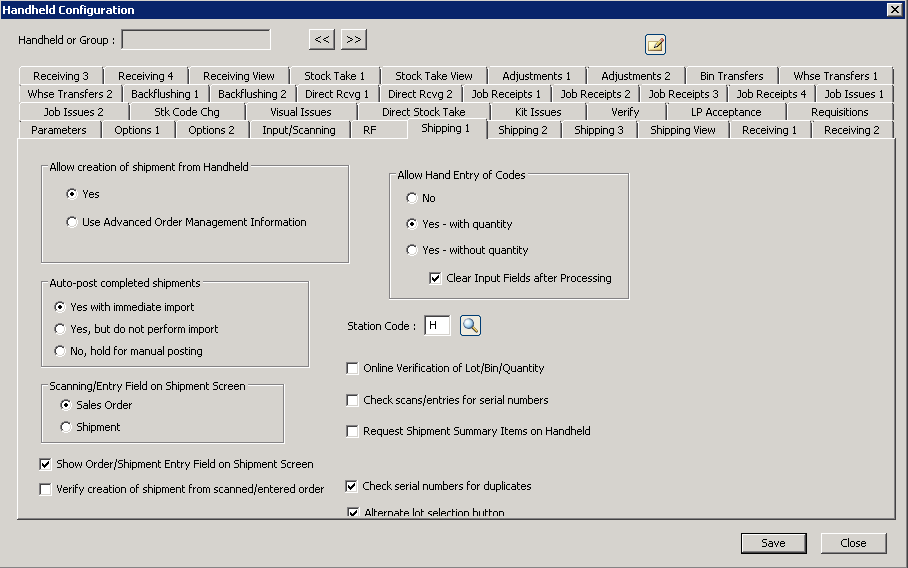
The following table outlines the prompts/options available when accessing this screen:
Allow creation of shipment from Handheld |
|
|
Prompt the operator for an order/shipment number to process |
|
This option causes the handheld solution to process the Advanced Order Management (AOM) sales order queue. If chosen, it automatically selects the next sales order from the AOM queue for the operator to process. |
Auto-post completed shipments Generally, a handheld operator will typically pull down a visual transaction, process it, post it back to the server, then immediately import it into SYSPRO. However, in some situations, it is preferable to delay the final step of importing it back into SYSPRO. For example, perhaps there are dozens of handheld devices across the floor being used for stock take, but for control purposes, it is desired to wait until all handhelds are returned and completed until the final import into SYSPRO is done. The following options allow this flexibility: |
|
|
When the shipment is done, the handheld operator indicates it is complete, it is posted back to SYSPRO and imported into the system. |
|
The import file will be posted to the server but the import will not be performed. This assumes someone will use the SYSPRO-based shipment program to do the import. |
|
The import is NOT sent to server until it is requested on the handheld menu (an option under "Actions" called "Post"); this option is seldom used and for advanced users, only. |
Scanning/Entry Field on Shipment Screen |
|
|
The handheld operator will enter sales order and a shipment will be created for that sales order. |
|
A shipment in the pending status is waiting and will be downloaded to the handheld. |
|
Displays a field where the operator can enter the order or shipment number. Note: if this option is not selected, handhelds with a direct scan interface will still accept a scan of an order or shipment number (only Motorola scanners) or the use of the NEW button will be required. |
|
When an order is entered on the shipment screen and a shipment does NOT exist for that order in the Handheld, this option determines whether the handheld should verify (via a pop-up prompt) that a new shipment be created. Note: if this situation occurs often, de-select this option to prevent the verification prompts. |
Allow Hand Entry of Codes When in a visual module, the default maximum number of lines for a given shipment is displayed on the screen (generally about 10). Without any entry fields, the operator can ship what is desired by tapping the screen (note the tapping options selected under the "Options 2" tab); Handhelds with advanced scan interface (Motorola/Symbol) will still recognize a scan even though there is no field on the screen. Since each company's operation is different, it is recommended to experiment with these flexible productivity options prior to choosing the best configuration for a live environment. The following options can be used to add entry fields to the screen. Note: by adding the hand-entry fields, the number of lines displayed is reduced to make room for the additional fields. |
|
|
Do not display the hand-entry fields. |
|
Opens up multiple fields at the top of the screen fields for stock code and quantity, at a minimum; however, serial, lot, and bin fields will be added based on SYSPRO settings. |
|
Opens up a single field at the bottom of the screen to allow scanning or hand-entry on handhelds. |
|
If using the two "yes" selections above, the handheld will clear the fields after processing. Sometimes, situations benefit from clearing previously entered fields and sometimes the opposite is true. |
Station Code: |
This option assigns a given shipping system station code to the handheld. The operator can enter this code to determine how the rest of the parameters for the handheld will handle a shipment. |
|
This option determines if the system should assume the handheld operator data on lot/bin/quantity is correct, or validate the information by communicate to and from the SYSPRO application server. In other words, should the handheld validate the combination of lot/bin/quantity against the stock code at entry time versus validating it later. Note: this will also work for non-lotted items where it will verify the bin and the quantity and also for lots where it will verify the lot and the quantity; however, it should be noted that each verification with the server will involve whatever time is required for round-trip network communications. |
|
Check any scan to see if it is actually a valid serial number. |
|
Depending on the summary tab of the Shipping Station setup, when a shipmen is closed on the handheld, the selected information is requested. |
|
Compare to previously entered serial numbers to prevent duplicate serial numbers from being entered. |
|


