Options 2


Options 2 Tab
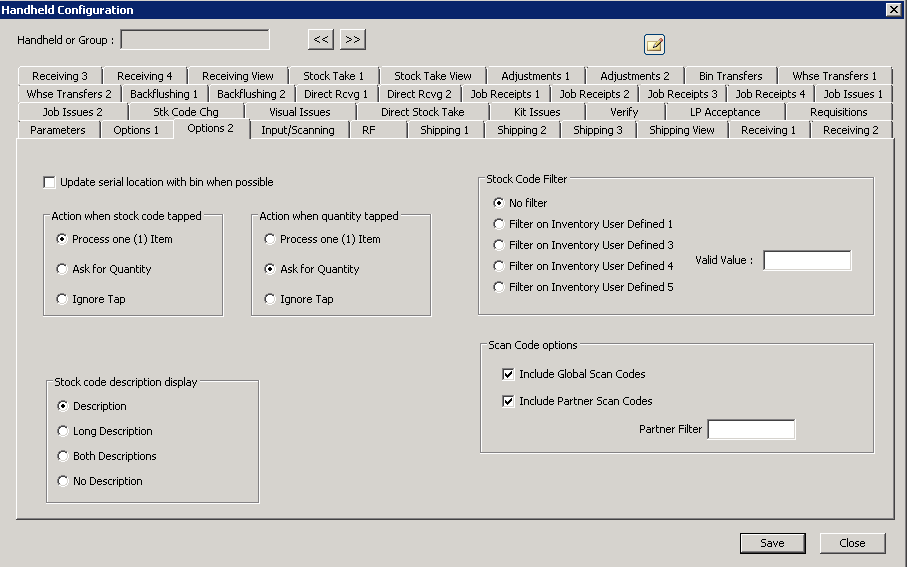
The following table outlines the prompts/options available when accessing this screen:
|
Action when stock code tapped Note: only affects "visual" modules (shipping, receiving, stock take, issues)-- these choices determine what should happen when the handheld operator taps the stock code. |
|
|
Assume that shipping/receiving/stock taking processes ONE item every time the stock code is tapped. |
|
Prompt the handheld operator to enter the quantity |
|
Handheld will not react to a tap of the stock code. |
Action when quantity tapped Note: only affects "visual" modules (shipping, receiving, stock take, issues)-- these choices determine what should happen when the handheld operator taps the quantity code next to the stock code. |
|
|
Assume that shipping/receiving/stock taking processes ONE item every time the quantity is tapped. |
|
Prompt the handheld operator to enter quantity. |
|
Handheld will not react to a tap of the quantity. |
Stock code description display When the stock code description is displayed, this option controls WHAT is displayed. |
|
|
Display the normal stock code description. |
|
Display the long description associated with this stock code. |
|
Display both the normals stock code description and the long description |
|
No stock code description is displayed at all. Note: this option can be used if description is not needed and it is preferable to make the best use of the data displayed on smaller screens. |
Stock Code Filter Generally, the handheld solution downloads all stock code information from SYSPRO for storage on the local handheld device. This helps maximize the performance of the device when stock lookups are needed. Selecting the filters below can be used to minimize the amount of information required for downloading to the handheld device. Note: these filters are generally not required since most modern handheld devices can easily handle the local storage requirements of many thousands of stock codes. |
|
|
All stock codes will be sent from the server for local storage on the handheld device. |
|
If selected, only stock codes with a match to the following value in the "Inventory User Defined 1" field will be sent to the handheld device. |
|
If selected, only stock codes with a match to the following value in the "Inventory User Defined 3" field will be sent to the handheld device. |
|
If selected, only stock codes with a match to the following value in the "Inventory User Defined 4" field will be sent to the handheld device. |
|
If selected, only stock codes with a match to the following value in the "Inventory User Defined 5" field will be sent to the handheld device. |
Valid Value: |
|
Stock Code Options |
|
|
|
|
|
Partner Filter: |
|


