Input/Scanning


Input/Scanning Tab
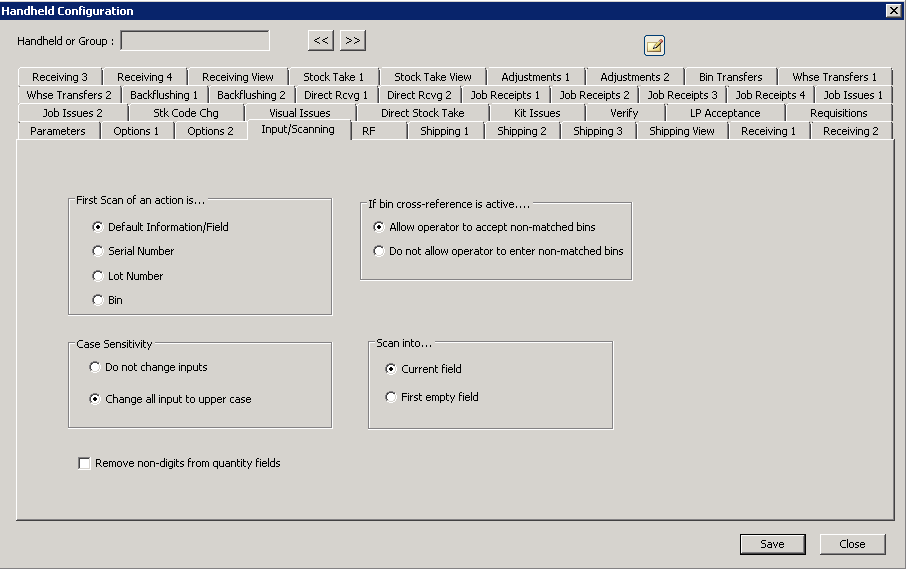
The following table outlines the prompts/options available when accessing this screen:
First Scan of an action is... This option basically flips around the standard sequence of information on the screens if information can be looked-up from one of the listed fields. |
|
|
Use the standard sequence of each module. |
|
Serial first-- for this selection, for example, some companies enable determining the stock code and/or bin number from serial number, thus making this choice the logical first scan action. |
|
|
|
This option causes the bin to be the first scan action, if selected. |
Case Sensitivity |
|
|
If selected, upper, lower, and mixed-case scanned text entries will be taken as received by the handheld device without change. |
|
If selected, all scans will be converted to upper case by the handheld solution before further processing. |
|
If enabled, any non-numeric entry into a quantity field will be ignored. Note: if this option is NOT selected, a scanned field containing a non-digit will be displayed in the quantity field and subsequently, the field will turn red indicating an error. |
If bin cross-reference is active... If a list of valid bins is downloaded into the handhelds, this option determines what is allowed by the operator when the handheld receives a bin that is not on the list is entered. WARNING: once ANY bins are downloaded to the handhelds, this validation is enabled; if "update bins" is enabled on the update screen and if bins where added, then the handhelds will be updated with the new bins. Note: the handheld solution will use either the SYSPRO Warehouse Management bin table OR the Cross-Reference bin table to provide a list of valid bins to the handhelds; entering new bins in SYSPRO may affect the handheld devices depending on how the following options are selected. |
|
|
If the bin received is not a valid bin, the operator can indicate it is a valid bin and ignore the warning. |
|
If the bin received is not a valid bin, the operator cannot override it. |
Scan into... When a scan is done by the handheld device, this option determines precisely where that scan data should be placed. Note: this option is only available on handheld devices using the advanced scan interface (currently, only Motorola/Symbol) since the standard scan interface does not distinguish between scanned entry or keyboard entry |
|
|
If selected, the scanned data is placed in the current field where the cursor is positioned. |
|
If selected, the scanned data is inserted into the first empty input field found. |


