Options 1


Options 1 Tab
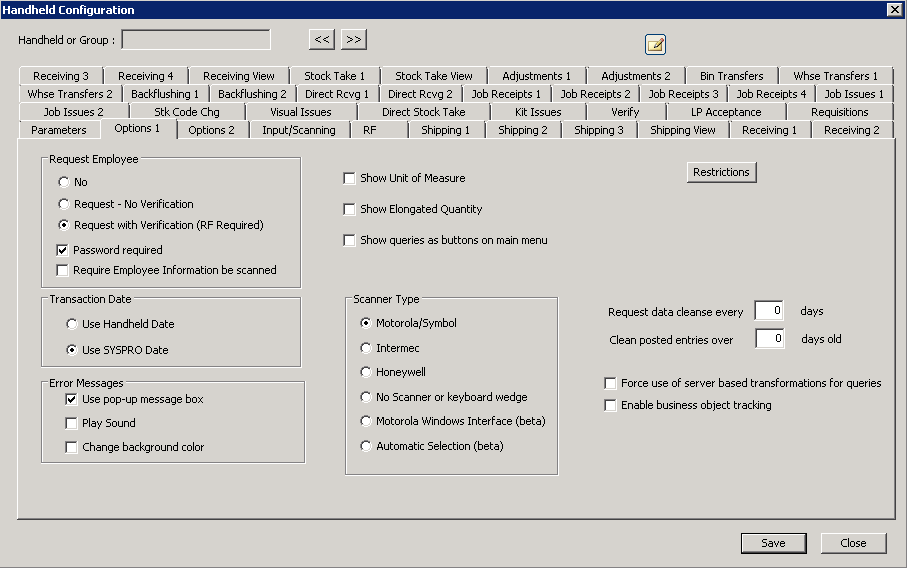
The following table outlines the prompts/options available when accessing this screen:
Request Employee |
|
|
The device will skip the employee screen and go straight to the menu |
|
Prompts the user for information, but will not validate the user-entered data against employee table. |
|
Prompts the user and verifies user-entered data. Important note: this is validated against employee table in the Cadacus cross-reference table, not the SYSPRO operator or WIP employee table-- in other words, the specific handheld table in the cross reference is used to verify the employee-entered response to this prompt. |
|
The default entry requests the handheld device user for a password. NOTE: all employees in the table must be created without passwords or validation will fail. |
|
This option is available only for Motorola handheld devices. If selected, it disables keyboard input of employee information at the prompt and, instead, receives scanned input for employee data, such as a bar-coded badge, for example. (note: this option is ignored by the Handheld on Windows application) |
Transaction Date |
|
|
This option sends the system date of the Handheld device. Note: historically, the handheld devices have general problems maintaining accurate dates due to various handheld operating system issues, device software issues, etc; so if this option is chosen, local operational procedures should be in place to validate the handheld dates daily. |
|
The current SYSPRO date will be used for all transactions. |
Error Messages This option only affects the Handheld on Windows applications |
|
|
This is the default-- it displays a pop-up message in the center of the screen when an error message is displayed. |
|
When an error occurs, this option plays the "error.wav" from the "sounds" directory. |
|
When an error occurs, the background color is changed to red on error. |
|
Enables the display of the unit of measure alongside quantity values on the screen. |
|
This option is for companies that have very large quantity numbers (e.g., millions) to display in the quantity fields on screens. Note: due to the increased field length for quantity fields, some fields or features that display information immediately to the right of a given quantity may not display. |
|
Scanner Type This option tells the handheld system what scanner interface to use and enables certain advanced functionality where available; note: this option is ignored by the Handheld on Windows program and has no affect on it. |
|
|
|
|
|
|
|
|
|
|
|
|
|
Restrictions button |
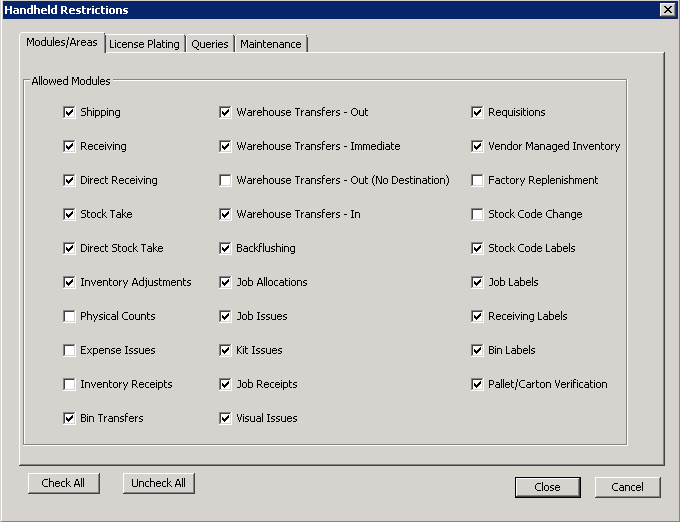
Launches the restrictions screens for enabling/disabling handheld restrictions or module access Note: if checking employees, system uses the same screen and BOTH must be checked. If restrictions are being used, It is recommended to start with handheld restrictions, then use the employee to narrow down restrictions (for example, if an employee is added, then handheld restrictions will limit access accordingly). |
To optimize performance, these two options work together to keep the local databases for the visual routines clean of completed and posted information. This process can be done manually on the handheld device menu, but the following selections will automate the cleaning-up of the old data to limit performance-related impact. |
|
Request data cleanse every |
For example, if "7" is entered, the operator of the handheld will receive a prompt every seven days to purge or clean data. This process can be done manually on the handheld device menu at any time. Note: if the operator declines the prompt, then the subsequent prompt will not be triggered until another seven days have passed. |
Clean posted entries over |
If an entry is placed here, then posted entries will be cleaned after this number of days. |
|
Some handhelds will not do XML translations effectively and the transformations must be done at the server. If a query is done on a handheld and a blank screen is returned, then enable this option. Note: XML is built locally for the back button and still requires a call to the server |
|
This option enables tracking of all business object calls and returns and stores the results in a set of tables in the SYSPRO database. The Cadacus WCF (Windows Communications Foundation) Service has an option for SQL logging and is the preferred method if business object tracking is desired due to its improved speed. |


