General 2


General 2 Tab
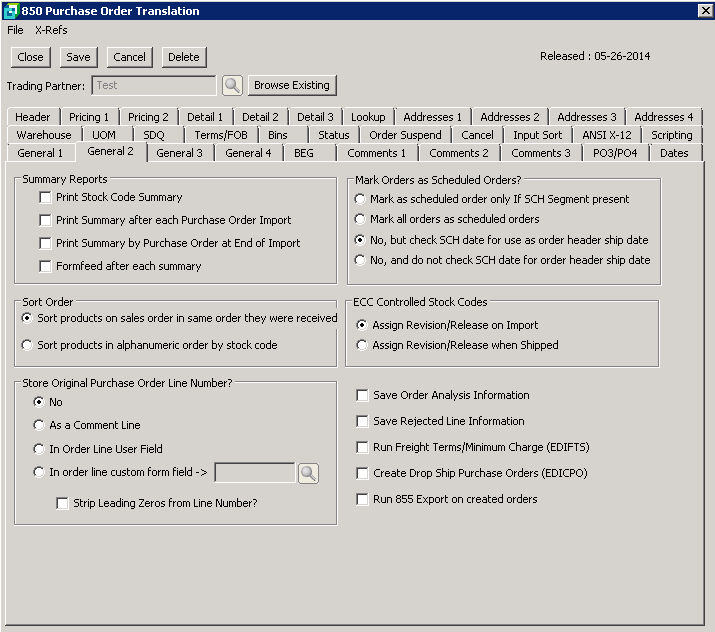
The following table outlines the prompts/options available when accessing this screen:
Summary Reports The General 2 screen is used to define the requirements for handling sales order information such as reporting requirements, order sort, line numbers, scheduled orders and ECC requirements. |
|
|
Select to print a summary list of all stock codes ordered in an 850 document at the end of the normal Import Report. |
|
Select to print a summary, by stock code, at th end of each separate order contained with the 850 Import |
|
Select to print details for each purchase order at the end of the 850 report. In addition, the report will also summarize the totals for all the PO's in the 850. |
|
If selected, each purchase order report will be separated by a blank page. |
Sort Order The products on the sales order may be sorted into stock code sequence or left in the order in which items were received. Select the preferred sort order. |
|
|
Select to sort stock codes in the sequence received in the 850 document. |
|
Select to sort stock codes in alphanumeric order by stock code. |
Store Original Purchase Order Line Number? If the original line number in the order needs to be sent back in an out going document, such as the 856 or 810, then select this option. This line number may be stored as set out below. |
|
|
Select if the Purchased Order Line number is not required to be stored. |
|
Select to store the purchase order line numbers as a comment on the sales order. If this option is used, the comment in the sales order will need to be preceded by LIN followed by a space. |
|
|
|
|
|
Line numbers may be sent in with leading zeros. Select if you want leading zeros stripped from line numbers. |
Mark Orders as Scheduled Orders? Sales Orders may be created as Scheduled Orders where each order line has its own ship date. The 850 may contain SCH segments to indicate scheduling the shipment date. Select from the following the choice that is best suited to your requirements. |
|
|
Selecting this option will mark orders as Scheduled only if the SCH (Schedule) segment is included in the 850 document. Ship dates will then be set on each stock line on the Scheduled order and will not be restricted to the ship date in the order header. |
|
Selecting this option will mark all orders as Scheduled orders whether there are SCH segments or not. |
|
Scheduled orders will not be created if this option is selected. However, selecting this option will prompt the system to check for and use the SCH date as the order header ship date. This will be the default. |
|
Selecting this option will not create scheduled orders nor will it check for a SCH date to use as the header ship date. |
ECC Controlled Stock Codes This option is only necessary if you are using ECC (Engineering Change Control) within SYSPRO. Select the required option. |
|
|
Select to assign Revision/Release numbers when importing the 850 document. |
|
Select to assign Revision/Release numbers at the time of shipment. |
|
Select to save EDI orders in the Order Analysis file in SYSPRO. This does not occur by default. The necessary Setup Options in the Setup>Distribution>Sales Orders on the General 2 Tab must also be selected. |
|
The normal setup is to report a rejection and then delete the report. This option will store rejected information that is needed to be sent back out on the 855 PO Acknowledgment. Select if option is required. |
|
This option is used only if you have the Freight Calculation Module. Select if option is required. |
|
Select to create drop-ship purchase orders . |
|
Select to automatically run the 855 Purchase Order Acknowledgment immediately after the Sales Orders are created. |


