Receiving 1


Receiving 1 Tab
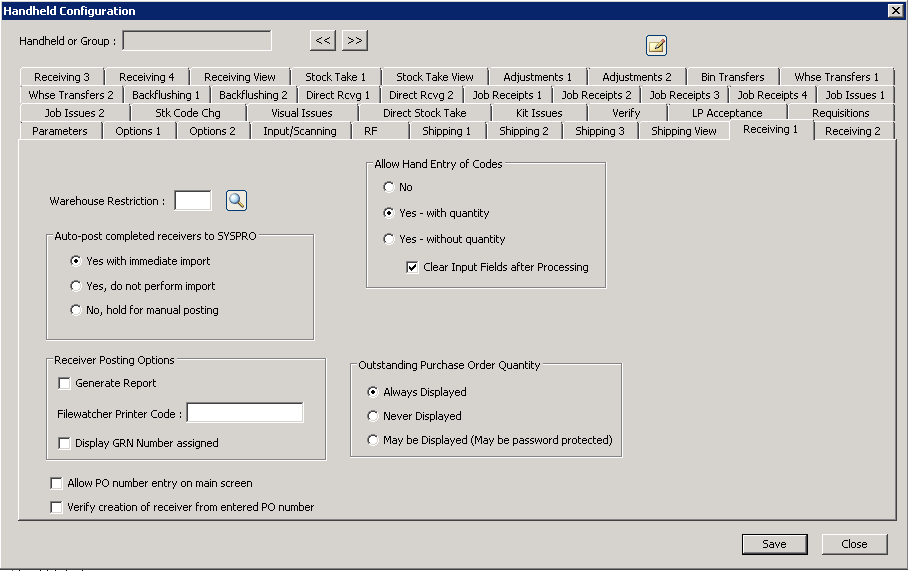
The following table outlines the prompts/options available when accessing this screen:
Warehouse Restriction: |
Prevent receivers from operating in the warehouse entered. |
Auto-post completed receivers to SYSPRO Generally, a handheld operator will typically pull down a visual transaction, process it, post it back to the server, then immediately import it into SYSPRO. However, in some situations, it is preferable to delay the final step of importing it back into SYSPRO. For example, perhaps there are dozens of handheld devices across the floor being used for stock take, but for control purposes, it is desired to wait until all handhelds are returned and completed until the final import into SYSPRO is done. The following options allow this flexibility: |
|
|
When receiving is done, the handheld operator indicates it is complete, it is posted back to SYSPRO and imported into the system. |
|
The import file will be posted to the server but the import will not be performed. |
|
The import is NOT sent to server until it is requested on the handheld menu (an option under "Actions" called "Post"); this option is seldom used and for advanced users, only. |
Receiver Posting Options |
|
|
|
Filewatcher Printer Code: |
The Cadacus File Watcher Service will watch a directory for filenames that end in ".fw". These files will then be transferred to a Windows Printer without going through the print driver. This allows formatted files to be sent directly to a Windows printer. The program is designed to be used with the Shipping Solutions labeling service as a alternative to using Rawprint or the direct queue mechanism or with the e.Net business objects over webservices. Refer to the Cadacus website tutorials for details. |
|
|
|
|
|
Allow Hand Entry of Codes The following options can be used to add entry fields to the screen. Note: by adding the hand-entry fields, the number of lines displayed is reduced to make room for the additional fields |
|
|
Do not display the hand-entry fields |
|
Opens up multiple fields at the top of the screen fields for stock code and quantity, at a minimum; however, serial, lot, and bin fields will be added based on SYSPRO settings. |
|
Opens up a single field at the bottom of the screen to allow scanning or hand-entry on handhelds. |
|
If using the two "yes" selections above, the handheld will clear the fields after processing. Sometimes, situations benefit from clearing previously entered fields and sometimes the opposite is true. |
Outstanding Purchase Order Quantity |
|
|
|
|
|
|
|


