Discounts


Discounts Tab
The Discount form is used to define how allowances, charges, miscellaneous charges and non-stock line items are to be handled in the 810 Document.
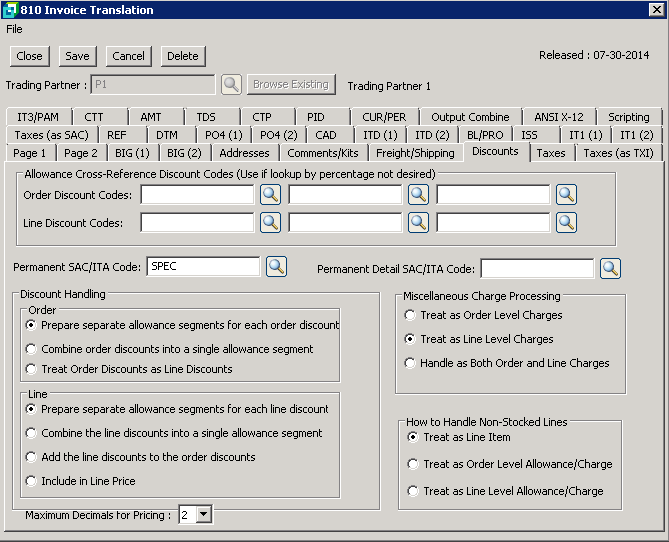
The following table outlines the prompts/options available when accessing this screen:
Allowance Cross-Reference Discount Codes (Use if lookup by percentage not desired) Discount Codes are used if lookup by percentage is not desired. The option selected determines whether discounts will be applied to the order or to the line item. Note that the system will automatically search the Cross References if discounts are found on the sales order. If the Cross Reference has been set up as a percentage then no entry is required. |
|
Order DIscount Codes: |
Enter or browse Outgoing Allowance and Charges and select the Allowance or Charge code to be used. The Order Discount Code can be created from here when browsing on the Cross-Reference/Allowance and Charges (Outgoing) form. |
Line DIscount Codes: |
Enter or browse Outgoing Allowances and Charges and select the Allowance or Charge code to be used. The Line Discount Code can be created from here when browsing on the Cross-Reference/Allowance and Charges (outgoing) form. |
Permanent SAC/ITA Code: |
Enter or browse Outgoing Allowances and Charges to select or add an ITA Cross-Reference Code for a permanent ITA segment if required by the Trading Partner. A permanent ITA code is for an ITA segment that will always be sent regardless of the discounts on the order. Use this code if the EDI invoice is different from the standard AR invoice. For example: If a .05% discount is given for EDI transactions, this is handled as a payment discount and not entered on the order. The EDI customer on the other hand wishes to see this reflected on the 810 invoice. Enter an ITA (Outgoing Allowance) entry in the Cross-Reference tables for the discount and enter the code here. The discount will be transmitted to the customer, but the discount will not be included in the invoice processed to Accounts Receivable |
Permanent Detail SAC/ITA Code: |
Discount Handling There are two methods for handling discounts for an order. The discounts can be applied at order level or line level. |
|
Order |
|
|
Selecting this option will create a separate segment for each order discount and requires a separate cross reference setting for each discount on the order. |
|
Selecting this option will create a single segment for all discount codes used. |
|
Select this option to reflect the order discounts as line discounts. |
Line |
|
|
Selecting this option will create a separate segment for each line discount on the order. |
|
Selecting this option will create one segment for all line discounts on the order. |
|
Select this option to add the line discounts to the order discounts. |
|
Select this option to include the discount in the line price. |
Miscellaneous Charge Processing |
|
|
If selected, any miscellaneous charges will apply at order level. |
|
If selected, any miscellaneous charges will apply at the line level. |
|
If selected, any miscellaneous charge will be handled as both order level charges and line level charges. |
How to Handle Non-Stocked Lines |
|
|
If selected, a non-stocked item will be treated as a line item. |
|
If selected, a non-stocked item will be treated as a Allowance/Charge at order level. |
|
If selected, a non-stocked item will be treated as an Allowance/Charge at line level. |
Maximum Decimals for Pricing: |
Enter the maximum number of decimal places to be used for item price checking. Up to 5 decimal places may be selected. |


