Translation Data Import


Translation Data Import Screen
When downloading from the website, a file ENCTRANS.EXE is downloaded and placed in an accessible directory such as the Base Directory. Refer to the download instructions. Double click and execute this file and a file called EDITRANS.TXT will be created. Enter the full path to this file in the space for ‘IMPORT File Name’ (e.g. C:\SYSPRO60\PROGRAMS\ EDITRANS.TXT).
The drive letter should be as the server sees it and NOT the mapped drive. It is now possible to browse on the server from the workstation. Once selected via the browse, or if typed in, click ‘OK’ to run the import of all the document translation data.
A file named EDITRN.DAT will be created in the data directory. This file is not company specific and is available to all companies using the data directory.
Note: If this translation is not run, then you will experience error screens when trying to setup and run documents elsewhere in EDI.
To define the EDI Translation Data Import information, select
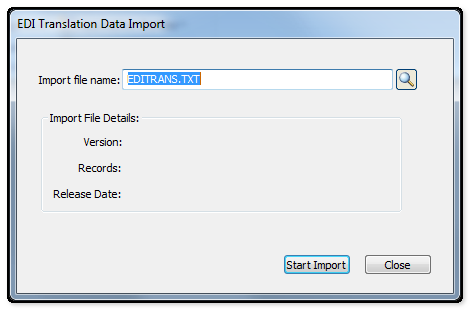
The following table outlines the prompts/options available when accessing this screen:
Import file Name: |
Enter or browse and select the full path for the editrans.txt file, e.g. C:\SYSPRO60\Programs\editrans.txt). The drive letter should be as the server sees it and NOT the mapped drive. It is now possible to browse on the server from the workstation. |
Import File Details: |
|
The Import File Details (Version, Records, Release Date) will be displayed as the file is running. |
|
Version: |
|
Records: |
|
Release Date: |
|
Start Import Button |
Once the path to the editrans.txt file has been selected, click on Start Import to execute the file. Once the file has completed the following two files will be created and placed in the SYSPRO data Directory: EDITRN.DAT EDITRN.IDX |

